Windows Search keeps lagging, and there's a built-in fix most people never try
There is no lack of frustrating and unwanted features on Windows, and Search is perhaps one of the worst offenders. Your experience with Windows Search has probably revolved around irrelevant results, missing files, and painfully slow performance. Wh...
There is no lack of frustrating and unwanted features on Windows, and Search is perhaps one of the worst offenders. Your experience with Windows Search has probably revolved around irrelevant results, missing files, and painfully slow performance. While Microsoft has improved relevancy and removed ads from Search, using it can still feel unusually slow, especially on a computer you've had for a while.
Many users give up on Windows Search in favor of third-party tools, but before you do that, there is a fix you should look into. If restarting the search service or trimming the indexed folders doesn't work, you can rebuild the search index entirely. It's a built-in option in the Windows Search settings and can dramatically improve search performance on your system.
It's worth trying some cheap fixes first
You may not need a lot of rework
Before rebuilding the search index, it's a good idea to attempt some fixes that won't take as long. The oft-recommended solution to laggy search performance is to simply restart the search service in Task Manager. In the Details tab of Task Manager, you can type "SearchHost" to find the relevant service and click End Task. Searching for something after that may improve performance.
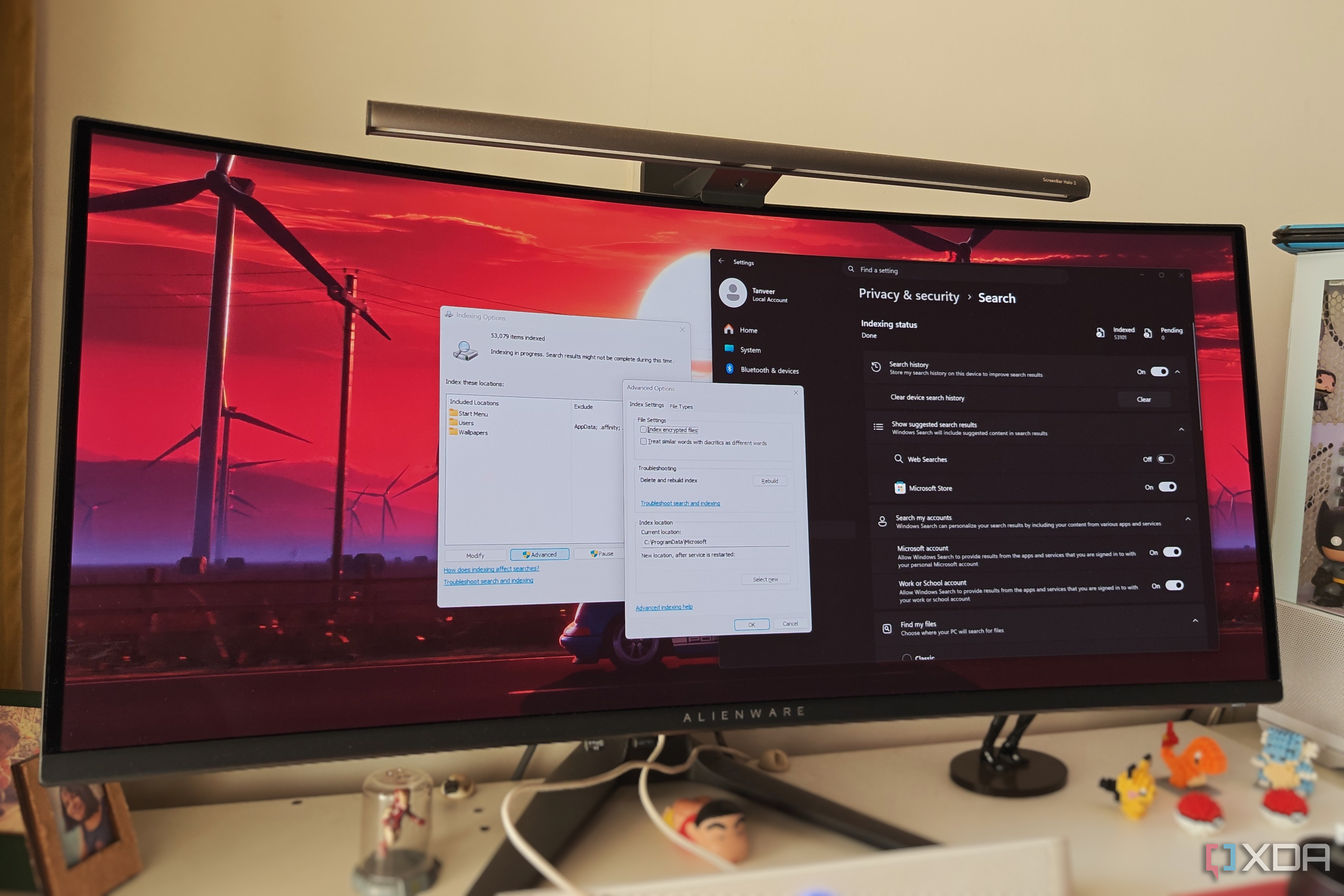
If it doesn't, another possible fix is to reexamine the indexed locations in your settings. Navigate to Settings > Privacy & security > Search and scroll down to see the list of indexed folders under Find my files. If Enhanced is selected, Windows Search is configured to search your entire PC whenever you're looking for something. This can take much longer and is wasteful if you're only ever searching for a handful of locations.
You could switch to Classic to limit the search scope to common folders like Documents, Pictures, Music, and Desktop. Alternatively, you can add to the list of excluded items, so that Windows doesn't waste time searching locations where you never store your important data.
Rebuilding the search index can wipe the slate clean
It's meant to revitalize your search performance
Over time, your PC's search index may have become bloated. Your search performance can be affected due to junk data and leftover indexed items that have no place in an up-to-date search index. These items can add a bit of overhead to your search performance, and so can searching an index that has grown too much. Asking Windows to rebuild your search index deletes the existing one and builds a new one that better reflects your system's current state.
Navigate to Settings > Privacy & security > Search> Advanced indexing options. In the dialog box that opens, click Advanced and then Rebuild under Troubleshooting. Windows might warn you that the process will take some time. Depending on the number of files to be indexed, it could take a few minutes to an hour. If you have a slower hard drive instead of an SSD, you might have to wait for several hours for full indexing.
If an index rebuild doesn't improve search performance on your system, don't rebuild it again. Instead, the problem might lie in your Windows installation, and running DISM and SFC scans to check for file system errors should be the next logical step.
Third-party tools like Everything are worth considering
For a faster and more convenient experience
Improving native search performance is possible, but if you still aren't satisfied, you can finally consider a program like Everything. It's a free third-party tool that can replace Windows Search as your go-to search tool. It's extremely fast, capable of indexing, well, everything on your PC in a matter of seconds. Searching for a file or folder is also snappy, and a far cry from Windows' native functionality or any other third-party tool.
Unlike Windows Search, Everything is a lightweight program that doesn't hog system resources during indexing or searching. It indexes your drives in real time, so adding, removing, and editing files gets reflected in the search index almost instantly. You can even use wildcards in your search term, so searching for mioft*iso will still return any Microsoft Windows ISO you're looking for.
You can even customize your search queries by using parameters like size, file type, dates, paths, and more. So, you don't need to remember the exact name when searching for a long-lost file or folder. Everything isn't the only third-party search tool for Windows, but it's certainly the most popular. It has been around for a long time, so you can trust that it will be around in the future, too.
Everything
Individual pricing
Free
Platforms
Windows
Everything indexes all the files on your computer within seconds, and you can find any file or folder you are looking for quickly.
Rebuilding your search index can fix years of laggy Windows Search performance
Most people restart the search service, shift to a third-party tool, or live with slow search performance on Windows. Rebuilding your search index can remove years of bloat and incorrectly indexed items, making search performance snappier. You could always move to Everything, but it's worth fixing Windows Search first if you don't like to install too many third-party programs on your PC.