The first setting I change on any Google T is hidden in the advanced display settings, and it fixes a lot
I prefer to watch media with smooth visuals. Doesn't everybody? When you own a streaming box, you want to adjust the settings to get the best picture quality possible. However, Google TV streaming boxes turn off an essential setting by default, which...
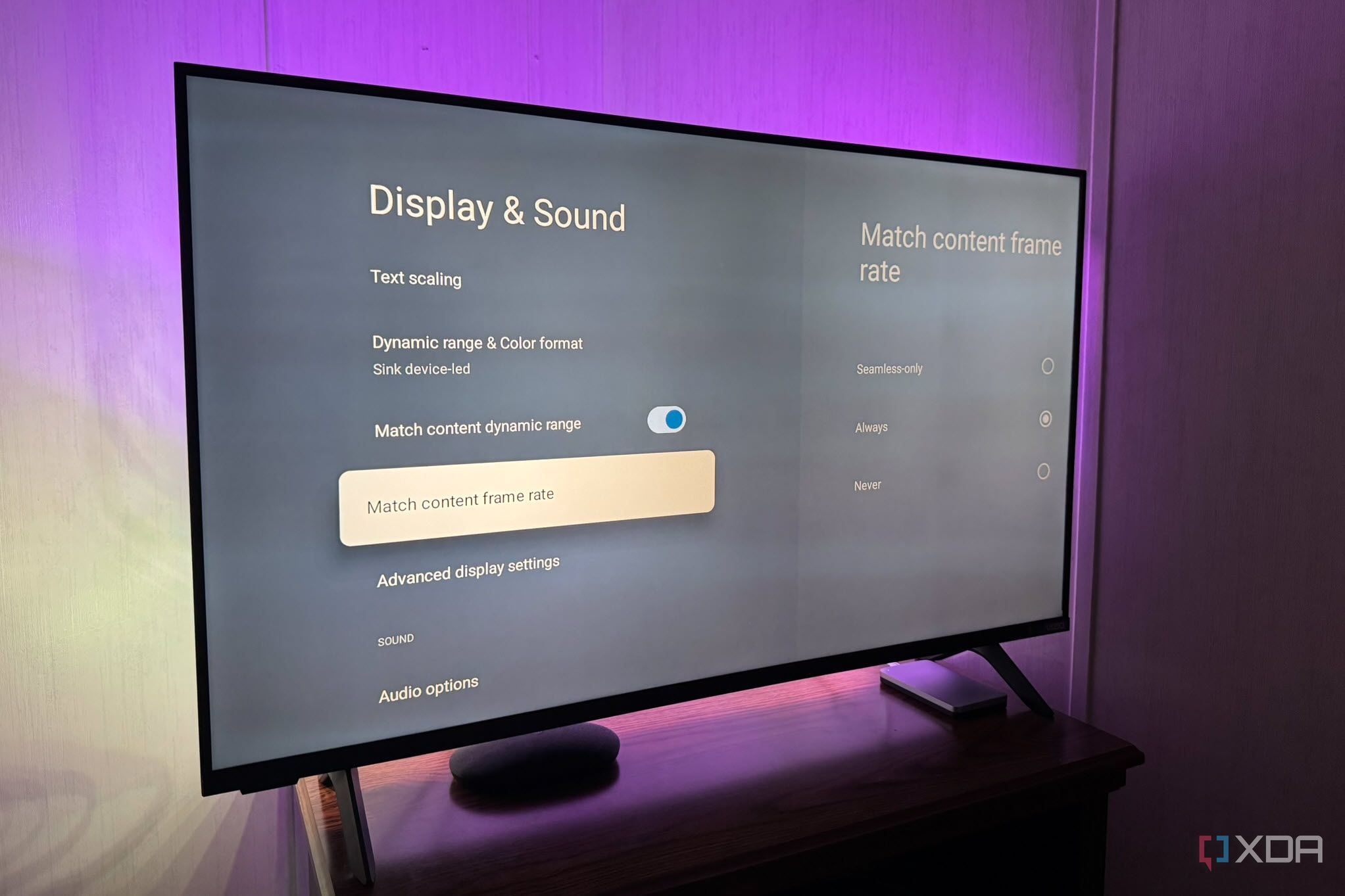
I prefer to watch media with smooth visuals. Doesn't everybody? When you own a streaming box, you want to adjust the settings to get the best picture quality possible. However, Google TV streaming boxes turn off an essential setting by default, which prevents you from fixing uneven motion. So I adjusted one key option tucked away in the advanced display settings.
The Match Content Frame Rate setting lets my Google TV device match video frame rates instead of outputting a fixed rate. It delivers smoother, more consistent motion in movies and shows without constant manual switching. It's a key setting for avoiding judder in movies and shows.
Match Content Frame Rate
A vital setting that provides a smoother picture flow
This setting doesn't get enough attention. It improves picture quality by matching the HDMI output refresh rate to the video that's playing. With it disabled, everything displays at a fixed rate, such as 60Hz. With the matched frame rate, the goal is more consistent motion in the movies and shows I'm watching. It works really well in scenes with slow camera pans.
For instance, when I watch a movie filmed at 24 frames per second, a compatible app asks the Google TV box to switch its HDMI output refresh rate from 60Hz to 24Hz. It can even achieve fractional rates. Showing 24 fps at 60Hz requires alternating individual frames that remain on the screen.
That creates uneven motion known as "judder." Matching the output rate avoids judder and creates a more seamless, higher-quality picture. You generally don't need to adjust the TV's refresh rate manually; the Android TV box handles the output-rate switch, and the television displays the incoming signal.
It doesn't work with every app
Enabling it allows matching, but doesn't force every app to use it
Enabling the Match Content Frame Rate setting doesn't mean every app on the box must use it. Frame rate support on Android TV depends on the app. Popular streaming apps like Netflix support it on Android 12 or later, and you don't need to adjust any additional settings. Self-hosted media apps like Plex and Jellyfin offer controls to enable refresh rate matching. Check each app's video playback settings to see whether it enables it automatically or requires you to turn it on in-app.
For instance, in the Plex app, you can enable it in Advanced video and audio settings. In the Jellyfin app, you can find it under Settings > Advanced Playback > Refresh Rate Switching, or something similar depending on the client version. The video app you use may also name it something different, but similar. Still, even if I have to enable the option in a specific app, it's nicer than not having it at all, and I will gladly do it.
You also want to know which frame rate setting to use in each app. If it is set to scale on a device, it switches the refresh rate while retaining the display's output resolution, and the streaming box handles scaling. Scaling on the TV means the TV matches both the refresh rate and output resolution to the video. The TV handles scaling the resolution. When you see "match frame rate" settings in other apps, the wording differs, but the idea is the same. If you're not sure, play around with the settings until they work best for your viewing situation.
Brief black screen trade-off
Picture interruptions may be worth it
The seamless option might sound better, but it can prevent matching if your TV can't switch without interrupting the picture. When I change the setting to fix motion cadence, the app switches, and a brief black screen may appear as the HDMI signal switches. For instance, switching from 60Hz for the home screen to 24Hz for the video.
The TV needs a second to re-sync the new signal timing and goes black. The interruption usually lasts less than a moment, but the improved quality is worth it. A movie may look vivid and sharp but still have distracting motion, like a slow camera pan across a scene. So even with occasional short picture interruptions, I will gladly pay the price for less judder in crucial scenes.
That's why I enable the match setting before settling in to watch anything. It's a small adjustment, but it allows supported apps to choose the frame rate that best fits the content. It doesn't fix all picture issues, like network, transcoding, decoder, or other streaming box issues. But it addresses a specific problem in movies and shows. It makes motion in the picture feel more consistent than when it's off. The only thing I need to remember is to turn it on for specific apps that support it.
The match content frame rate setting fixes motion cadence for movies and shows
You probably haven't thought much about this setting on your Google TV box. Likely because it isn't enabled, and you may chalk picture motion issues up to a slow processor or slow network connectivity. The next time you turn on your box, make a point to enable it. Experiment with different apps, and look for an option to enable it in the ones you use, if it exists. Remember, turning it on broadly doesn't mean all your apps will use it.