My Windows install is ten years old, and a handful of maintenance habits are why it still runs like new
I have been running Windows 11 on this same machine for the past 10 years, and I haven't had to wipe and reformat once. I haven't felt the need to reformat because I use it primarily for writing. I keep the system light, and my regular maintenance ke...
I have been running Windows 11 on this same machine for the past 10 years, and I haven't had to wipe and reformat once. I haven't felt the need to reformat because I use it primarily for writing. I keep the system light, and my regular maintenance keeps it running like new. Some added Microsoft features have helped, but my steady system-management routine does the best job of keeping it running smoothly.
If I stay diligent with file organization, avoid installing too many apps, and clean up after heavy jobs, my systems tend to last a while without reinstalling Windows. I handle tasks myself or use free, lightweight utilities to keep my PC in shape.
Avoiding a messy local drive
I treat my system drive as a workspace, not a dumping ground
I treat my local system drive as a place to get work done, not a place to leave apps and files scattered about. I try to keep the drive as clean and lean as possible. I keep things light and use my PC for writing, screenshot work, and some browsing. Besides Windows, I run Office, a browser, and a few lightweight open-source utilities. I use other machines for more complicated work, like photo and image editing, OBS, media management, and gaming.
My secondary drives are a different story. I have an external drive that is so messy that if it were my home and relatives came over, I'd be embarrassed. I use it as a dumping ground for browser history and cache, downloads, old files, and other items I move off the system drive to keep it tidy. I also run several portable app versions from a secondary internal drive when I can, so they don't clog my C:\ volume.
Clearing storage space
I run a weekly check on everything I can delete
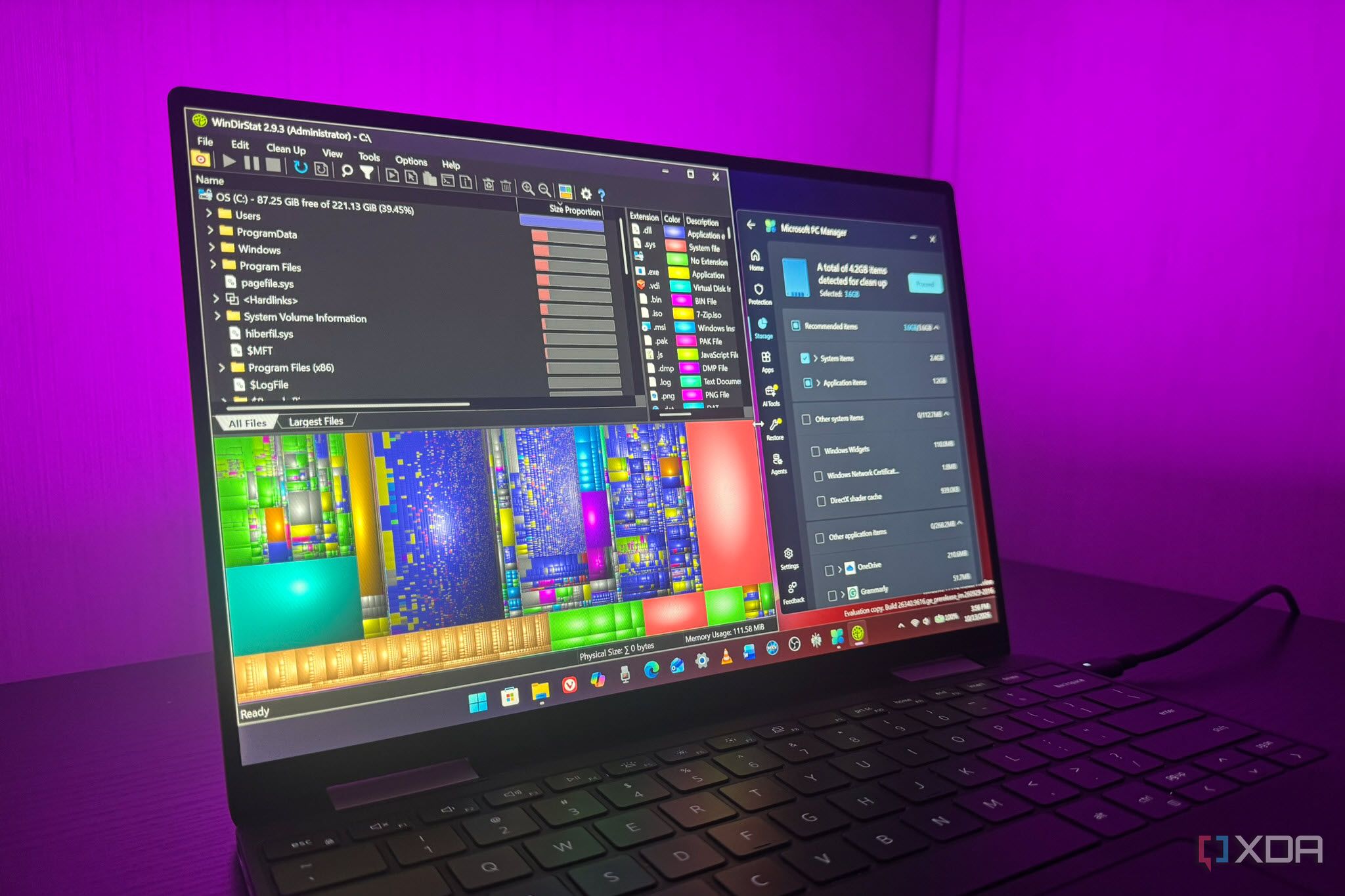
Relying on Storage Sense alone isn't enough to keep your drive clean. I clear storage space on my local drive every week to make sure there isn't garbage lying around. I can't always remember to manually delete items I no longer need, so I use WinDirStat to show me, graphically, which files are taking up space. While I try to remain clutter-free, old installers, temp files, and leftovers from completed projects are easy to forget. A cleaner drive improves system performance, so Windows and other apps have room to manage data effectively. That's why I move unnecessary files and app installs to other drives I use as a dumping ground.
It's a useful utility that lets me select a file and shows its path. I can delete it directly from the app, or if I want to investigate further, which is usually the case, I go to the location in File Explorer. Other times, if Windows Search is too slow in File Explorer, I use VoidTools' Everything search utility to get to a path quickly. It's also great for searching connected drives for data I may need. WinDirStat is a great tool for pinpointing large files I can delete to free up space on my local drive. Then I use other tools for general cleanup, like Microsoft's PC Manager. It makes it easy to clear temp files and shows which apps take up space, so I can uninstall the ones I no longer use.
WinDirStat
WinDirStat is one of the best ways to visualize what's using your storage on a Windows PC.
Updates are essential
I keep Windows, hardware, and apps updated
An essential part of keeping a well-maintained PC is keeping everything up to date. Windows will tell you when an update is ready, but my PC isn't set to restart automatically. There is a case to be made for holding off on Windows updates, but I usually pause them for a while and keep an eye on the news for major catastrophes they cause. If everything sounds good, I install the updates, and by then there's usually a hotfix I can use if something goes awry.
Apps generally update in the background, but it never hurts to check if one isn't running correctly. I also check my GPU drivers and other hardware components weekly. If an app like my favorite screenshot app includes an internal option to check for updates, I use it. I also mark my calendar to check for BIOS/UEFI updates every four months. I research them before applying the update in case it breaks something, as other updates do. I am not as quick to pull the trigger on new BIOS/UEFI updates as I am on software, unless my PC is noticeably struggling.
Keeping good maintenance habits for Windows
Most Windows users know the maintenance tasks they should be doing; it's just a matter of doing them. I've found the easiest way is to start with a clean system drive and keep it clutter-free. I'd also be remiss if I didn't mention managing your startup apps.
If you run tasks only once in a while, they take longer, and your PC reaches a point where the only choice is to format and reinstall. But running regular maintenance tasks will keep it running for years.